
If the logged-in user's company is a Client or Contractor type Company, the User List page lists the users of the logged-in user's company that the logged-in user has access to.
If the logged-in user's company is a H&S Practitioner type Company, the User List page lists the users of the currently selected Company that the logged-in user has access to.
Each row contains a subset of the information of a user and two special columns. The status column, second from right reflects the status of the user and the very right hand column contains the Actions dropdown list providing the logged-in user with options to access and modify the User's details and the information associated with it. The logged-in use's access to the User details and the information associated with it is controlled by the roles assigned to the logged-in user, the status of the User in the list and ownership of the User in the system.
In general, a User is firstly owned by the logged-in user that originally created it in the system and secondly by the Company of the very same user. These two types of ownership, combined with the roles assigned to the logged-in user, control the access of a user to the details of another User and the information associated with it. In fact, if a user is not assigned a role to view the User detail the User will not be included in the list on the User List page.
A User can have one of several statuses.
Active signifies that the User and its related information is available for al operations including editing of details, the managing of the related information including the generation of documentation.
Suspended signifies that the User and its related information is unavailable for all operations except the viewing of details and the related information. User suspension allows for temporarily disabling the functionality associated with a users, normally to resolve disputes on issues outside of the system.
Suspended users can be returned to the Active state once the issues have been resolved.
A Deleted User cannot be seen in the list on the User List page is and effectively removed from the system for any future use. A User cannot be undeleted by the logged-in user..
The list of users may be filtered by status.

Users in the list are filtered by checking and clearing the relevant checkbox in the Status drop down box. Checking an option will include users with the relevant status in the list and clearing a checkbox will exclude users with the relevant status from the list. Any combination of options may be selected.
The Actions dropdown list provides the user with options to access and modify the users details and the information associated with it.
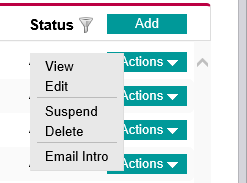
Selecting View from the Actions dropdown list in the very right hand column of the row of a users redirects the logged-in user to the relevant View User page displaying the selected user's detail but not allowing the logged-in user to change any of the properties. See User Detail
Selecting Edit from the Actions dropdown list in the very right hand column of the row of a user redirects the logged-in user to the relevant Edit User page displaying the user's detail and allowing the logged-in user to change the various properties. See User Detail
Selecting Suspend from the Actions dropdown list in the very right hand column of the row of an active user pops up a confirmation window to confirm the intention to suspend the selected User.
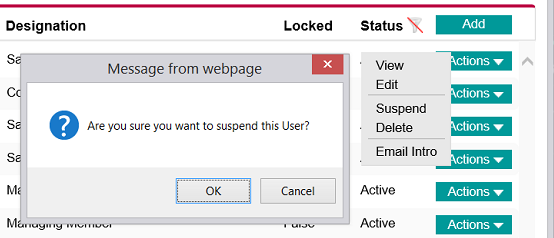
Clicking the OK button changes the User status to Suspended. The Cancel button cancels the action and the User status is not affected.
The Activate option of the Actions dropdown list in the very right hand column of the row is available for suspended users only. Selecting this option changes the User status to Active.
Selecting Delete option from Actions dropdown list in the very right hand column of the row of an active or suspended user pops up a confirmation window to confirm the intention to delete the selected User.
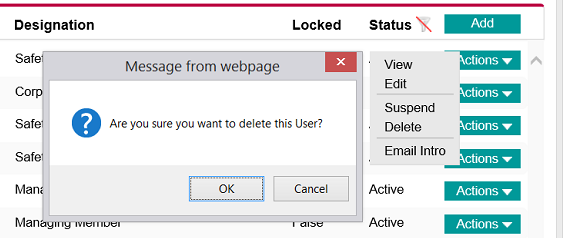
Clicking the OK button changes the User status to Deleted and removes the User row from the list. The Cancel button cancels the action and the User status is not affected.
Selecting Email Intro option from the Actions dropdown list in the very right hand column of the row of a user row resends the original email containing the user's password to the user's email address. This option is normally available to system administrators only.
Clicking the Add button in the header of the very right hand column redirects the user to the New User page allowing the logged-in user to complete and save the detail for the new User. See User Detail