
A user can change his or her password at any stage. It is in fact advisable for a user to change his or her password on a regular basis, at least once per month.
A user must be logged in to change his or her password. See Login for help on logging in.
Once logged in, click on the Change Password link at the top right hand corner of any page.
The logged-in user is redirected to the Change Password page. Enter the current password in the Current Password field and the new password in both the New Password and Confirm Password fields and then click the Change Password button at the bottom right.
If New Password and Confirm Password fields do not contain the same text and the logged-in user will be informed by means of a popup window and an error message at the bottom of the page. The Confirm Password field will also be shaded with a light red to indicate the offending field.
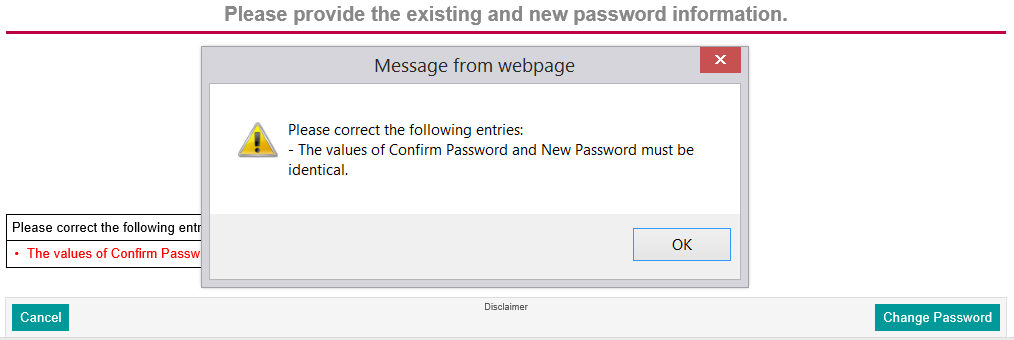 The Popup Window
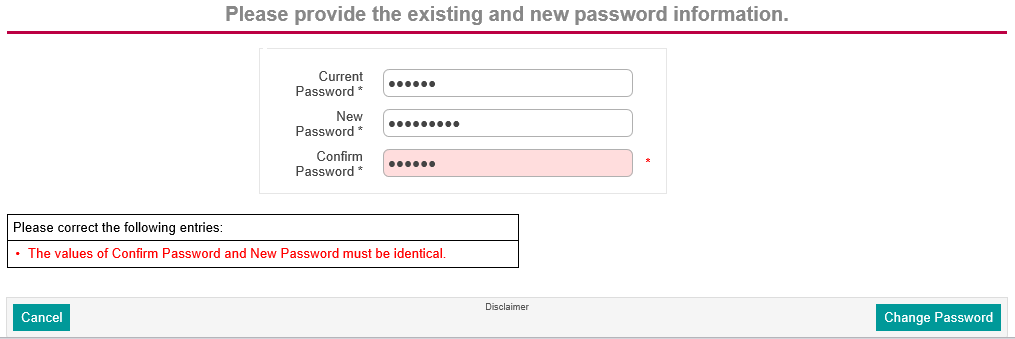 The Error Message
Simply correct the mistake and then click the Change Password button at the bottom right again. A popup window informs the logged-in user following a successful change with a reminder to use the new password on your next login.
