
A user can reset his or her password in the case of a forgotten password.
To change a known password, log into the eSafeT Construction Safety Documentation Generation application, click on the Change Password link at the top right hand corner the page. See Change Password for help on changing a password.

To to reset a password, go to the Login page by clicking on the Login link on the eSafeT Home Page or click this link. Alternatively go to the Reset Password page directly with this link.
The user is redirected to the Log In page.
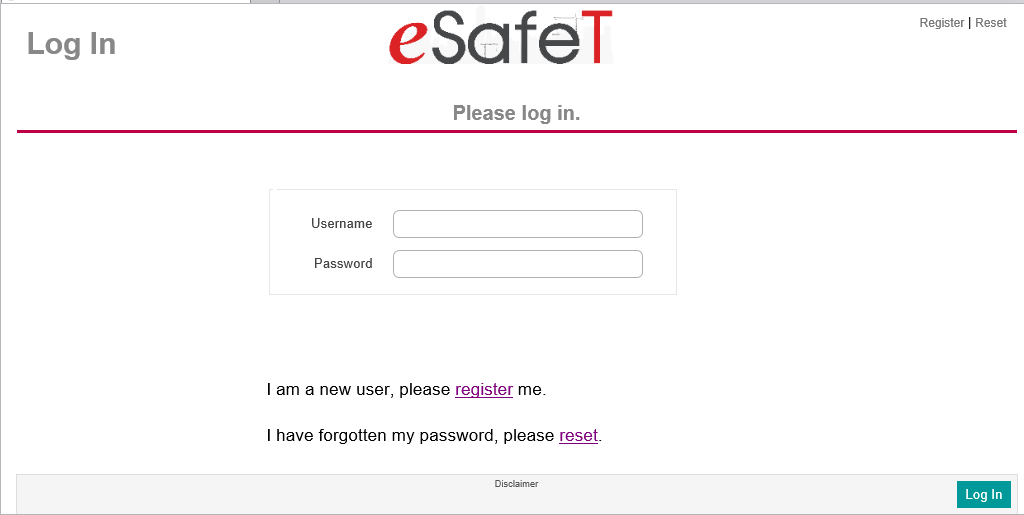
Click on the I have forgotten my password, please reset link below the Password field or the Reset link at the top right.
The user is redirected to the Reset Password page. Simply complete the User Name field with your user name i.e. email address. Click on the Reset button on the bottom right
If the eSafeT system succeeds in resetting the password, a popup window confirms the reset and directs the user to his or her email to find an auto-generated email containing the new password. The user can immediately log in with the new password. The user should change his or her password immediately following the next log in.
If the eSafeT system fails to reset the password, a popup window informs the user of the failure. Once the password reset process has failed, only the eSafeT technical team can resolve the issue.