
The Dashboard page is the eSafeT landing page providing the logged-in user with a snapshot of the various sets of information associated with the logged-in User and the logged-in Company. It provides quick navigation to key entities and search facilities.
The Dashboard page is divided into five elements.
The My Detail element reflects the detail of the logged-in user and provides quick access to View or Edit the details via the Actions drop down list.
Selecting View from the Actions dropdown list next to the "My Detail" title redirects the logged-in user to the relevant View User page displaying the logged-in user's detail but not allowing changes to the properties. See User Detail
Selecting Edit from the Actions dropdown list next to the "My Detail" title redirects the logged-in user to the relevant Edit User page displaying the logged-in user's detail and allowing the logged-in user to change the various properties. See User Detail
The title of the Logged In Company Detail element in reality contains the actual name of the logged-in company e.g. "Builders for Africa Detail"
The Logged In Company Detail element reflects the details of the Company of the logged-in user and provides quick access to View or Edit the details via the Actions drop down list and access to the User list page of the Company via the List Users and List Projects option in the Actions drop down list.
Selecting View from the Actions dropdown list next to the "Logged In Company Detail" title redirects the logged-in user to the relevant View Company page displaying the company's detail but not allowing the logged-in user to change any of the properties. See Company Detail
Selecting Edit from the Actions dropdown list next to the "Logged In Company Detail" title redirects the user to the relevant Edit Company page displaying the company detail allowing the user to change some of the properties. See Company Detail
Selecting List Users option from the Actions dropdown list next to the "Logged In Company Detail" title redirects the user to the relevant List Users page displaying a list of users registered for the logged-in company. See User List
The Recent Project element lists the eCodes and names of the Projects most recently accessed by Users of the logged-in Company and the status, date of access and the User who accessed it. The list is sorted by date in descending order i.e. most recent date at the top.
Quick access via the New drop down list allows the logged-in user to create new Projects.
The items in the New dropdown menu next to the "Recent Projects" title are different depending on whether the logged-in company is a Client, Contractor or H&S Practitioner type company.
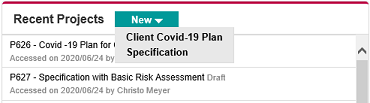 New Project Drop Down Menu for Clients
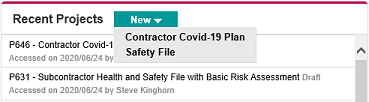 New Project Drop Down Menu for Contractors
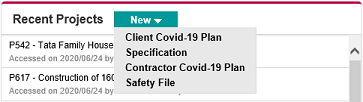 New Project Drop Down Menu for H&S Practitioner
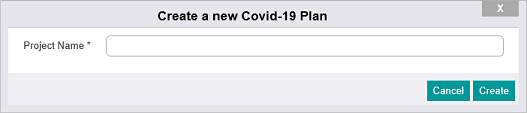
The Project Name field value is required and must be completed. If the actual construction project has no formal name, use three or four words that best describe the project.
Try not to duplicate Project names for different projects as it could result in a lot of confusion at a later stage and searching for the project by name becomes less effective. However, as a rule of thumb, use the same project name when creating both a Safety File and a Covid-19 Plan for a contractor project or both a Specification and a Covid-19 Plan for a client project.
Click the Create button to create a new Covid-19 plan project. The logged-in user is redirected to the Project Detail page to start editing the new Project. See Project Detail page
The Cancel button cancels the action and no Project is created.
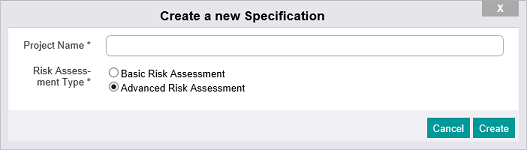
The Project Name field value is required and must be completed. If the actual construction project has no formal name, use three or four words that best describe the project.
Try not to duplicate Project names for different projects as it could result in a lot of confusion at a later stage and searching for the project by name becomes less effective. However, as a rule of thumb, use the same project name when creating both a Safety File and a Covid-19 Plan for a contractor project or both a Specification and a Covid-19 Plan for a client project.
Select the desired value for the Risk Assessment Type field.
Click the Create button to create a new specification project. The logged-in user is redirected to the Project Detail page to start editing the new Project. See Project Detail page
The Cancel button cancels the action and no Project is created.
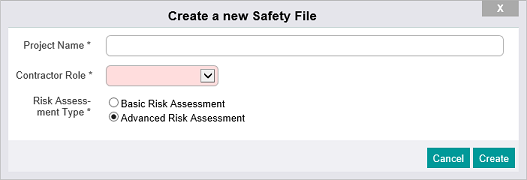
The Project Name field value is required and must be completed. If the actual construction project has no formal name, use three or four words that best describe the project.
Try not to duplicate Project names for different projects as it could result in a lot of confusion at a later stage and searching for the project by name becomes less effective. However, as a rule of thumb, use the same project name when creating both a Safety File and a Covid-19 Plan for a contractor project or both a Safety File and a Covid-19 Plan for a client project.
Select the desired value for the Contractor Role field.
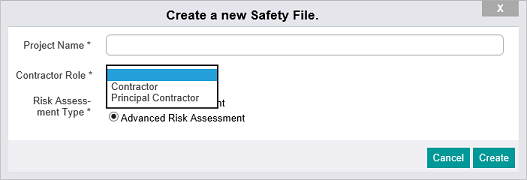
Select the desired value for the Risk Assessment Type field.
Click the Create button to create a new safety file project. The logged-in user is redirected to the Project Detail page to start editing the new Project. See Project Detail page
The Cancel button cancels the action and no Project is created.
The Find Project advanced search element provides the logged-in user with the functionality to search for one or more Projects based on a comprehensive set of search criteria. The element contains a Company dropdown list if the logged in Company is a
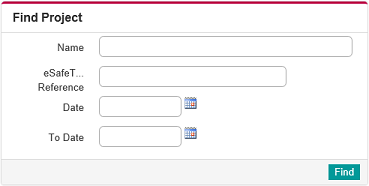 Find Project Element for Clients and Contactors
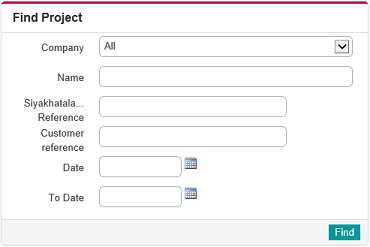 Find Project Element for H&S Practitioner
The search process uses the set of criteria supplied to find Projects with matched values. Fields not filled in are ignored.
The Company dropdown list is only available for H&S Practitioners and contains all of the Companies created by the logged-in company and visible to the logged-in user. If selected, Projects of the selected Company are returned. Company is ignored if the default value "All" is selected.
Enter a full or partial Project name in the Name field. Ignored if empty.
Enter a full or partial logged-in company (Practitioner) reference in the Logged In Company Reference field. This only makes sense if the logged-in company has a Use Reference Number value of Required or Optional. See Use Reference Number.
Ignored if left empty.
Enter a full or partial customer company reference in the Customer Reference field. This only makes sense if the customer company has a Use Reference Number value of Required or Optional. See Use Reference Number.
Ignored if left empty.
Use the Date field only if a single date is targeted or both the Date field, for the "From" date and the To Date field if a date range is required. Simply select dates from the date pickers. Ignored if empty.
Click the Find button to find the Projects fitting the criteria. If only one project is found to conform to the search criteria, the logged-in user is redirected to the relevant Project Map page.
If more than one project is found to conform to the search criteria, a window with the list of Projects fitting the criteria is popped up.
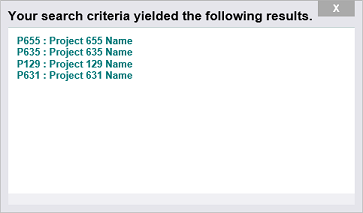
Clicking on a listed Project redirects the logged-in user to the relevant Project Map page.
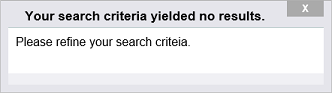
A popup window informs the logged-in user if no Project is found to conform to the search criteria. .
The Find by eCode search element provides the logged-in user with the functionality to search for a Project by its eCode. Simply enter the Project eCode e.g. P361 in the eCode field and click the Find button.
If a project with the specified eCode is found and the project is accessible by the logged-in user, the logged-in user is redirected to the relevant Project Map page.