
The Project Print page provides the logged-in user with the functionality of analysing the information entered for the selected project and to navigate to fields containing information which generated errors or warnings during analyses. It also provides the functionality to generate the sample pages for Safety Plan projects and pay for and generate the final documentation once the Project is in the Completed state.
If the selected Project is editable i.e. in Draft or Completed state, it is automatically analysed on navigating to the Project Print page. The results of the analysis is displayed in the Analysis Result block at the top of the screen.
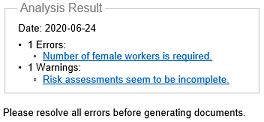 Analysis Result Block
The block contains up to two lists of links representing the fields or pages containing information that produced errors and warnings respectively.
The logged-in user can navigate to the Error and Warning locations by clicking on the links in the Analysis Result block. Errors must be fixed in order to produce either sample pages or final documentation. Warnings do not have to be fixed in order to produce documentation but it is highly recommended that the warnings be fixed as they indicate possibly incomplete or missing information.
The Project state is changed to Completed once all errors have been resolved.
Once all Safety Plan Project errors have been fixed the Project state is changed to Completed and the Sample button and Generate buttons are displayed.
The Sample button is used to generate sample Safety File documentation pages. Sample pages have a "Sample" watermark on each page. It provides a sample of what the final documentation entails and what it will look like.
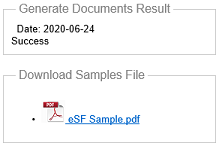 Sample Pages File
Simply click on the link in Download Samples File to download the samples file.
Once the Project state is changed to Completed, the Generate button can be used to generate the final documentation . Once the final documentation is generated, the Project state is changed to Active and the information can no longer be modified.
Before the final documentation is generated, the logged-in user must either pay for the documentation or select a previously purchased, normally multi document, contract to use as payment for the documentation.
To buy a document, the logged-in user clicks the Generate button which pops up the Use or buy a contract or individual Specifications(s), Use or buy a contract or individual Safety File(s) or Use or buy a contract or individual Covid-19 Plan(s) window.
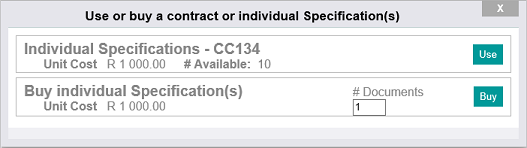 Use or buy a contract or individual Specifications(s) Popup Window
The window presents all the payment options available to the logged-in user:
Previously purchased contracts are listed as shown by the top option in the Use or buy a contract or individual Specification(s) window above. The logged-in user simply selects the corresponding Use button to use one of the available documents as reflected by the "# Available" value. The available count of the contract will be decreased and the final documents generated and available for download.
The option to buy individual Specifications or Safety Files is always available if the logged in user is authorised to buy documents. The option is presented as shown by the bottom option in the Use or buy a contract or individual Specification(s) window above. The logged-in user can specify how many individual documents to purchase in the "# Documents" field. To buy the number of documents specify, the user clicks the Buy button.
The payment gateway currently employed by eSafeT is PayFast. Payment by credit card and EFT is provided for but the payment gateway might not allow credit card payments of more than R 10 000. The logged-in user must buy documents in batches of R 10 000 or less if payment by credit card is required. Follow the PayFast online prompts and instructions to complete the payment. Once payment is successfully completed the final documents are generated and the user is redirected back to the Print window where the generated documents will be available for download.
Quite a few documents may be generated per project, especially for safety file projects. eSafeT merge these documents into a smaller number of documents if needed and the merged documents are listed in the "Download Files" box at the bottom of the Print window.
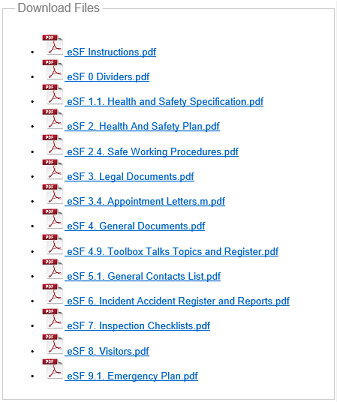 Example of the list of files available for download for a Safety File project
Each file can be downloaded a maximum of three times, partially to guard against distributed denial-of-service (DDoS) attacks. This should allow for the successful download of documents even for users with less-than-ideal connectivity. The eSafeT technical team can help a user that cannot successfully download files.
The icons and links of files downloaded the maximum number of times are dulled out and the file name has the word "downloaded" added to it.
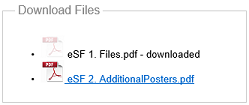 Example of the list of files available for download for a Covid-19