
The Contributor List page lists the Contributors of the selected Project. Each row contains a subset of the information of a Contributor two special columns.
The very right hand column contains the Actions dropdown list providing the logged-in user with options to access and modify the Contributor's details.
The second from last column reflects the number of Appointee's associated with each Contributor and is simply intended to improve user-friendliness.
User access to the Contributor details is determined by the system and the user does not need to be concerned about it.
The Actions dropdown list provides the user with options to access and modify the Contributor details and the information associated with it.
The View option is only available in the Actions dropdown list in the very right hand column of the row of a Contributor if the project is not editable i.e. if the project status is Active. Selecting this option redirects the user to the relevant View Contributor page displaying the Contributor detail. See Contributor Detail
The Edit option is only available in the Actions dropdown list in the very right hand column of the row of a Contributor if the project is editable i.e. if the project status is Draft or Completed. Selecting this option redirects the user to the relevant Edit Contributor page displaying the Contributor detail allowing the user to change any of the various properties. See Contributor Detail
The Delete option is only available in the Actions dropdown list in the very right hand column of the row of a Contributor if the project is editable i.e. if the project status is Draft or Completed AND the system allows for the deleting of the Contributor.
Selecting this option pops up a confirmation window to confirm the intention to delete the selected Contributor. The confirmation message also warns the user if there are any Appointees associated with the Contributor.
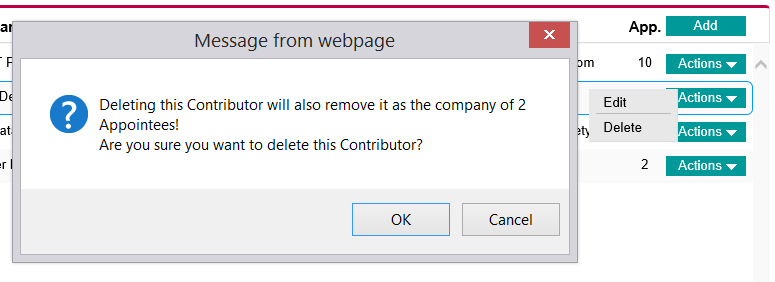
Clicking the OK button removes the Contributor from the list. The Company field of any Appointees associated with the deleted Contributor will be cleared and will need to be completed before printing the documentation. The logged-in user does not need to be overly concerned about immediately updating the Appointees though as the system will flag the missing Company fields as errors before printing.
The Cancel button cancels the action and the Contributor is not affected.