
The Project Map page is one of the Project secondary pages and provides the logged-in user with a complete graphic overview of the statuses and key properties of all the Project details and related information as well as one-click navigation to any of the secondary pages associated with the Project. This includes one-click access to the generated project documentation.
The Project Map page is the landing page for a Project when navigating from one of the other eSafeT web pages.
The page is divided into several columns, some of which are not available for all project types. Each column contains one or more graphical elements representing an eSafeT page or web object.
The Information Column contains four graphical elements representing the Detail page, the Info page, the Description page and one of the Advance Risk Assessment, Basic Risk Assessment or the Risk Profile pages.
The elements represents the analysis information and link to the Detail, Info and Description pages. They display the number of errors and/or warnings generated by the information on each page as well as a RAG (Red-Amber-Green) status indicator in the very right hand top corner of the element.
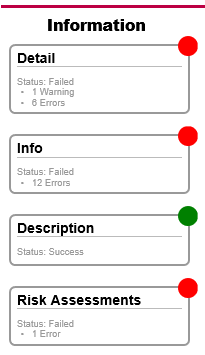
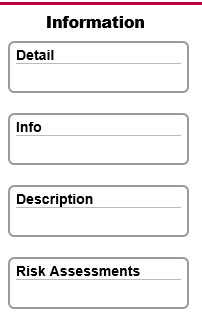 Detail, Info, Description and Risk Assessment Page Elements for a
Safety File projects with basic risk assessment contains a Risk Profile element (and page) instead of a Risk Assessment element.
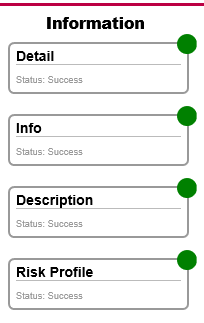 Detail, Info, Description and Risk Profile Page Elements for a
Specification projects do not contain Info or Description elements.
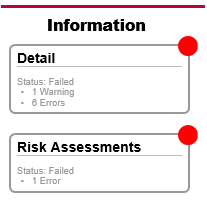 Detail and Risk Profile Page Elements for a Specification Project
Page Elements for a Project in Active mode does not display any analysis information or any status indicators but still provide links to the relevant pages for easy and quick navigation.
The Contributors Column contains graphical elements each representing one Contributor Detail page.
Each element displays the Contributor Type as title and the name of the relevant company as well as the analysis result. It also links to the relevant Contributor Detail page. The status displays the number of errors and/or warnings, if any, generated by the information of each Contributor as well as a RAG (Red-Amber-Green) status indicator in the very right hand top corner of the element.
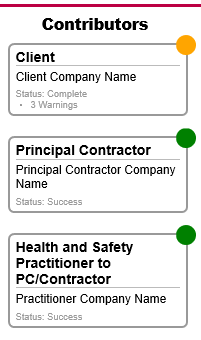
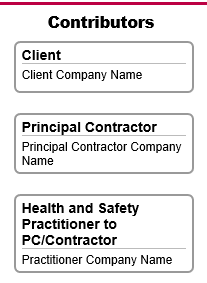 Contributor Page Elements for a Project in
Page Elements for a Project in Active mode does not display any analysis information or any status indicators but still provide links to the relevant pages for easy and quick navigation.
The Appointees Column contains graphical elements each representing one Appointee Detail page and is only visible for Safety File type projects.
Each element displays the Appointee Type as title and the name of the person to be appointed as well as the analysis result. It also links to the relevant Appointee Detail page. The status displays the number of errors and/or warnings, if any, generated by the information of each Appointee as well as a RAG (Red-Amber-Green) status indicator in the very right hand top corner of the element.
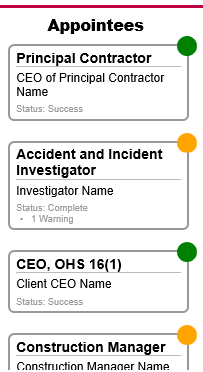
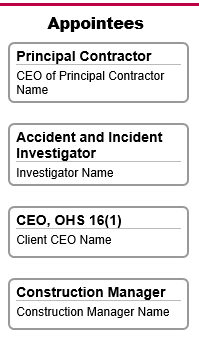 Appointee Page Elements for a Project in
Page Elements for a Project in Active mode does not display any analysis information or any status indicators but still provide links to the relevant pages for easy and quick navigation.
The Workers Column contains graphical elements each representing one Worker Detail page and is only visible for Safety File type projects.
Each element displays the name and email address of the worker and no analyses information or RAG (Red-Amber-Green) status indicator.
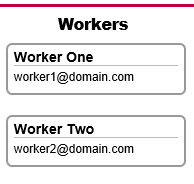 Worker Page Elements for a Safety File Project.
The Documents Column contains graphical elements each representing one document produced for the Project.
Each element displays the name of document and either the word "Draft" or "Final" in the right hand top corner of the element indicating if the document was is a draft or final document. Clicking on the element allows for the downloading or online viewing of the document.
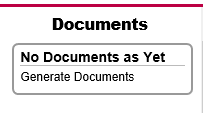
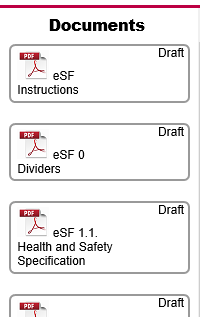
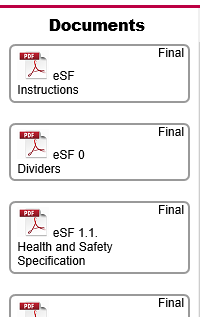 Document Page Elements for a Safety File Project.
Only one element is displayed in the Documents Column if no documentation has been generated as yet. Clicking on the element navigates to the Project Print page.